How to pay for a child’s session
Last reviewed:
-
Step 1
Wait for attendance to be recorded
Wait for a gym admin to record your child’s attendance. It will then appear in Unpaid sessions on Home.
-
Step 2
Choose your child’s session
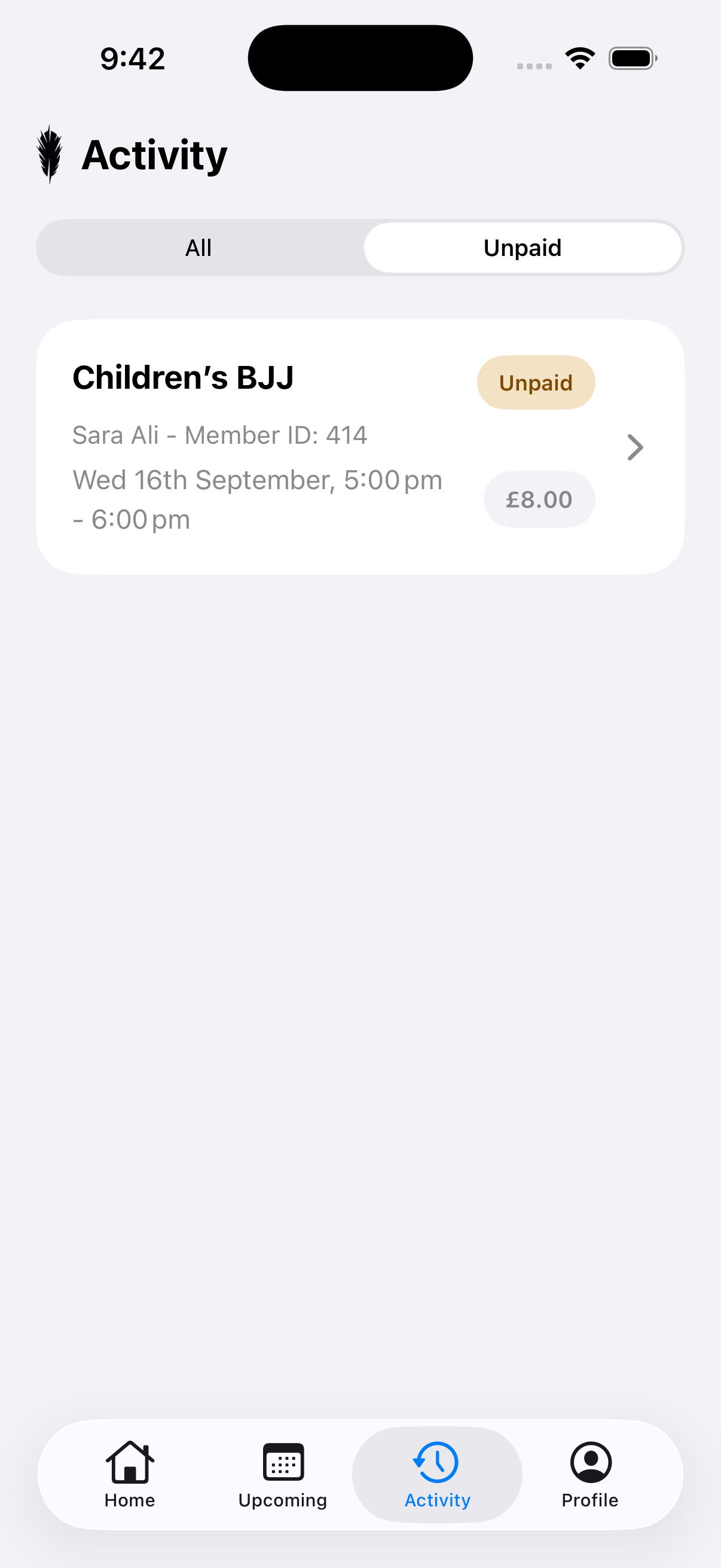
On Home, tap Unpaid sessions to open Activity. Check your child’s name, session date and price, then tap their unpaid session. The app copies your child’s Member ID and opens Zeffy.
-
Step 3
Select one session
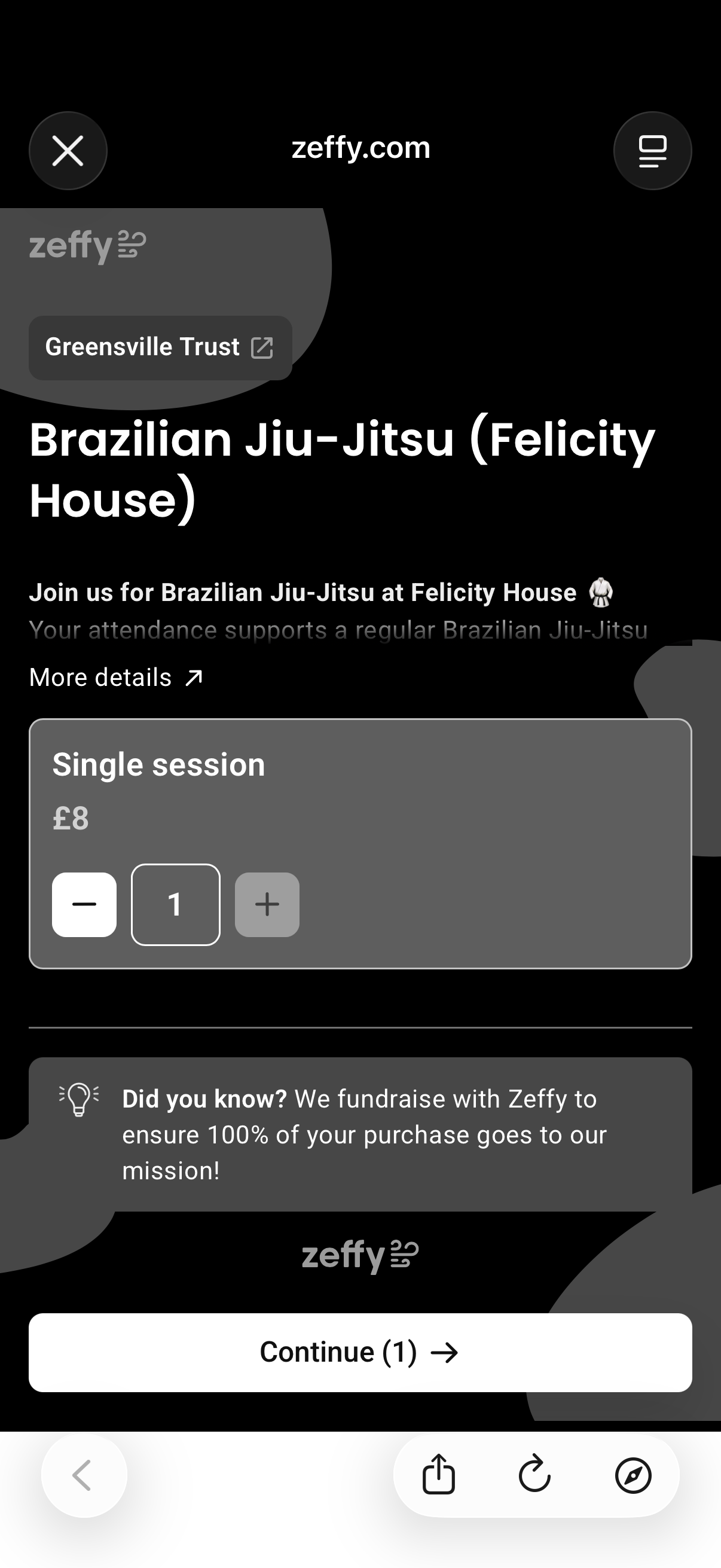
In Zeffy, tap Add beside Single session, then tap Continue (1).
-
Step 4
Enter the session details
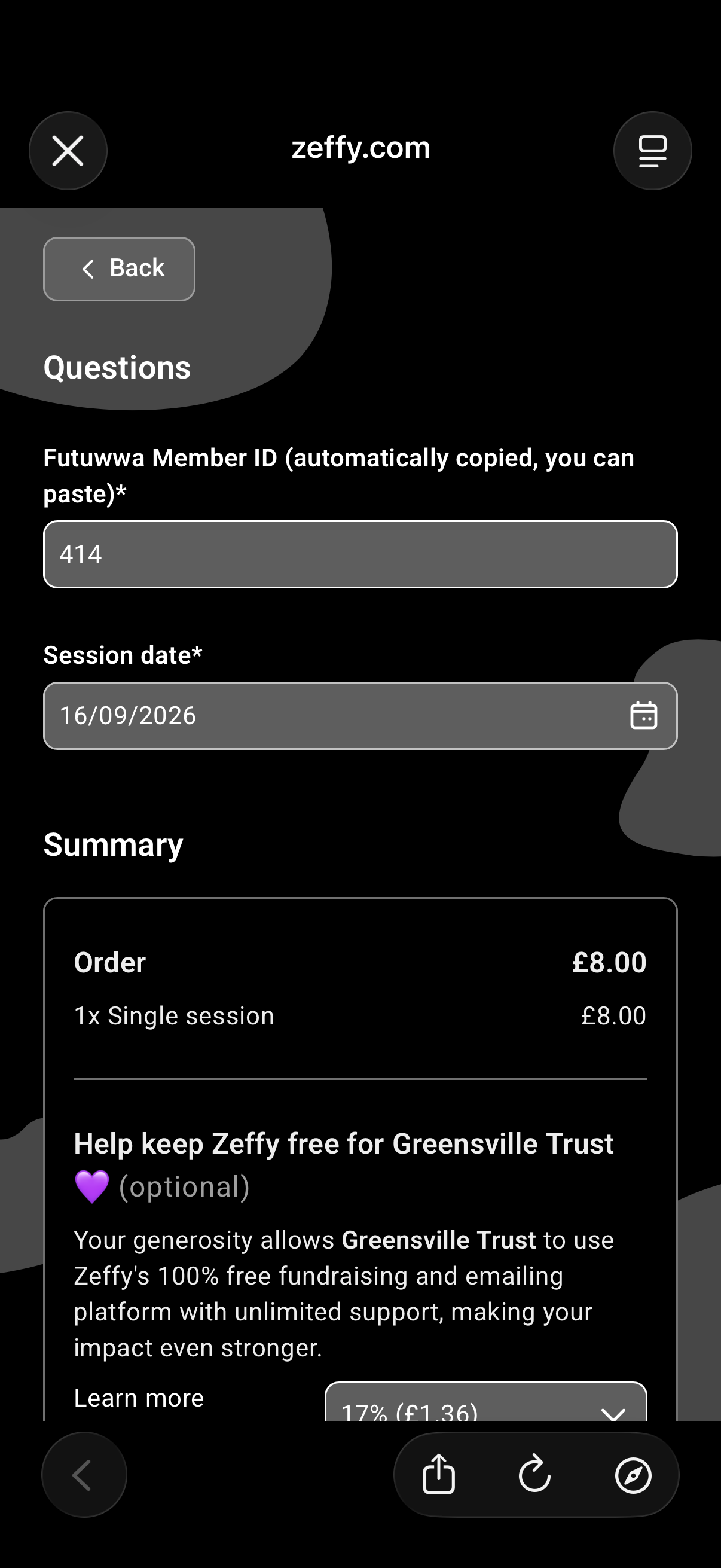
Paste or enter your child’s Member ID in Futuwwa Member ID.
In Session date, tap the calendar icon and choose the date of the session, or enter it as DD/MM/YYYY.
-
Step 5
Complete payment
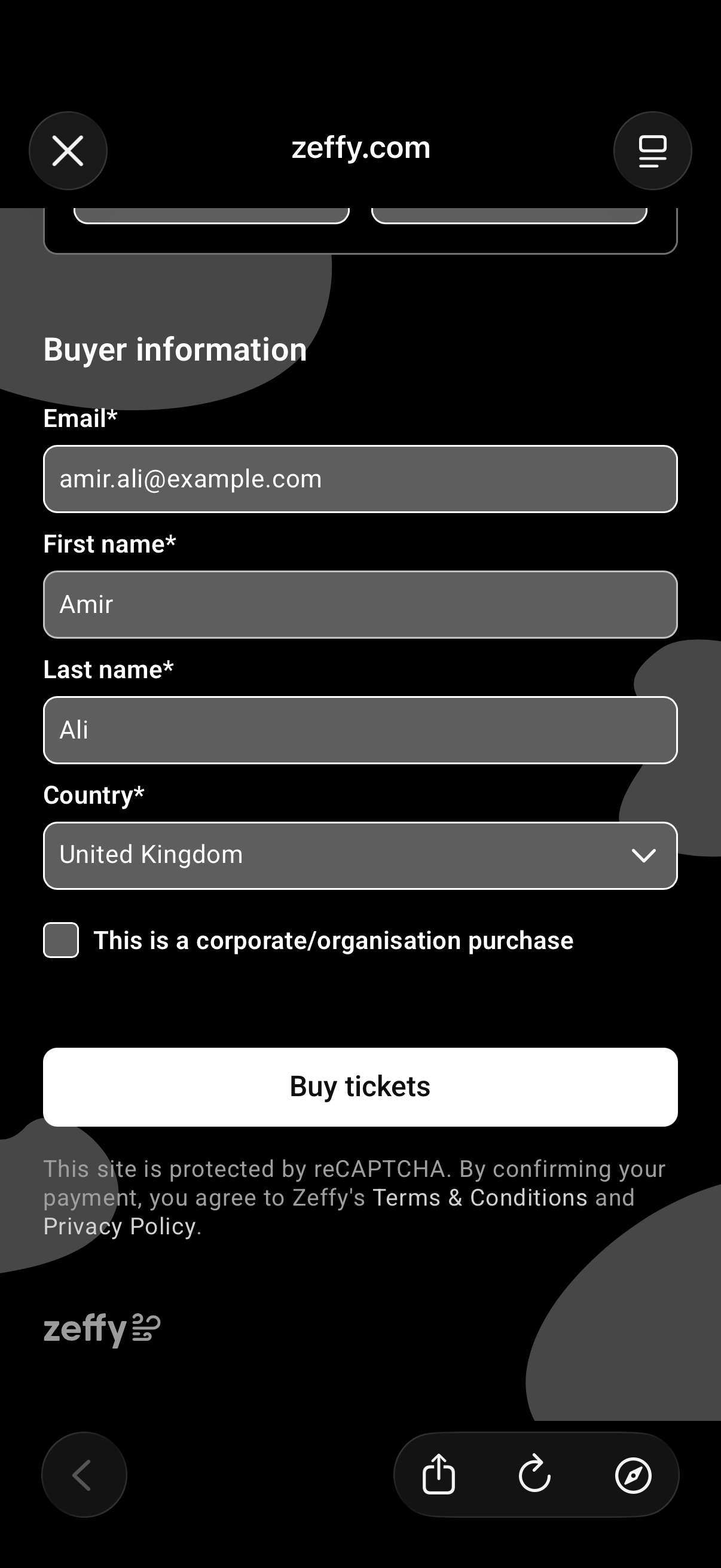
Enter your payment details and complete Buyer information with your own details. Then tap Buy tickets.
-
Step 6
Check the payment status
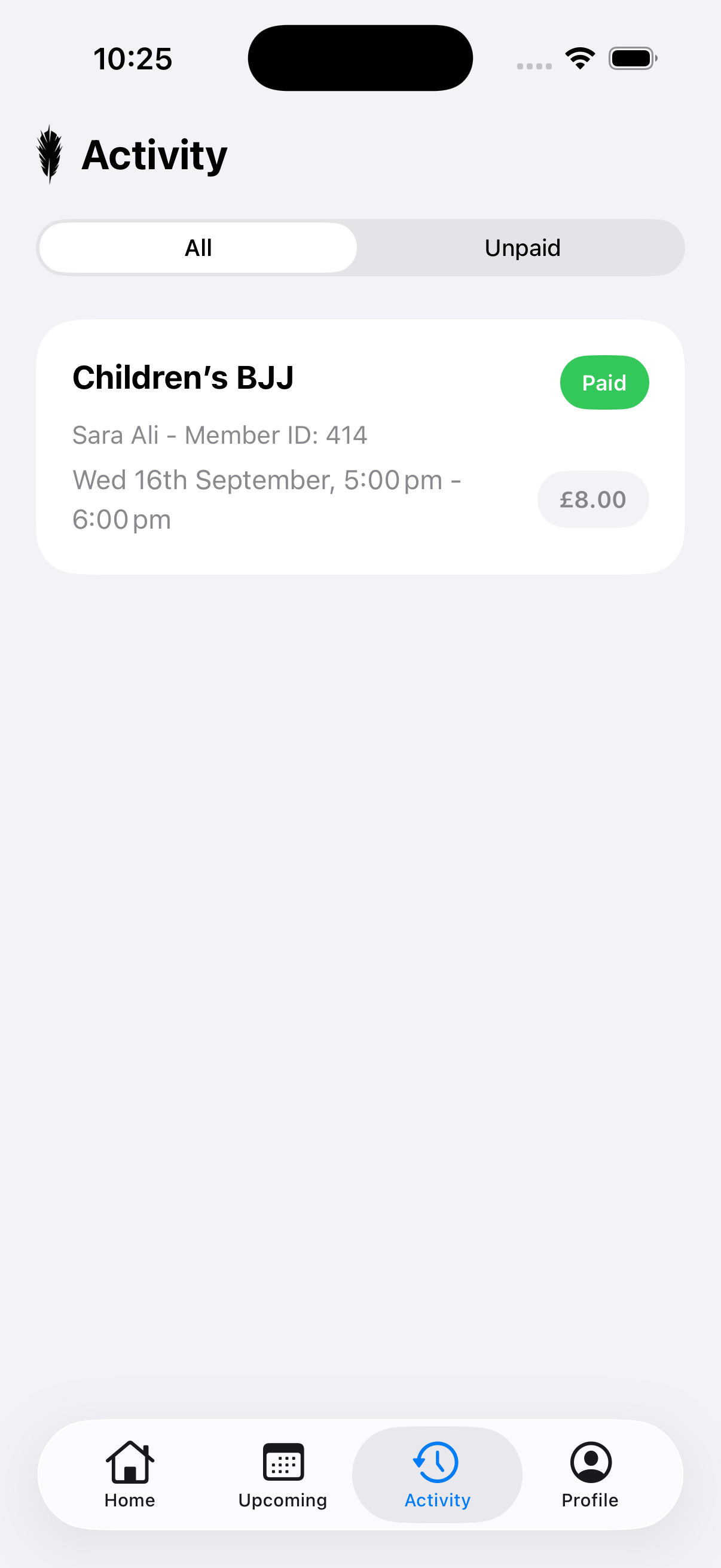
Return to Futuwwa and open Activity, then All. Check your child’s session shows Paid.
If it has not updated, wait briefly and pull down to refresh. Do not pay again.